

How to Use the Glow Rabbit Web App
Supported Devices
Supported devices and browsers:
- Google Chrome browser on Windows PC
- Google Chrome browser on Mac OS
- Google Chrome browser for Android
- Google Chrome browser on Chromebook
- Google Chrome browser on Linux
Note: Not compatible with iPhone or iPad.
If you are using an iPad or iPhone, please use the dedicated app.
Tested Devices
- Android Phone Google Pixel 6 pro
- Android Phone moto G power 5G
- Mac Book Pro
- Windows
- MX Linux
- Android Tablet ALLDOCUBE iPlay 60 Mini
- Android Tablet ALLDOCUBE iPlay 60 Mini Pro
- Lenovo Chromebook Flex 3i
Link to Web App
Launch the Google Chrome browser and access the following URL.
It is convenient to bookmark it.
We recommend using this on a tablet or PC, although it can also be used on a smartphone.
If using a smartphone, we recommend holding the device horizontally due to the smaller screen size.
https://www.gadgetlabo.net/glowplay/indexe.html
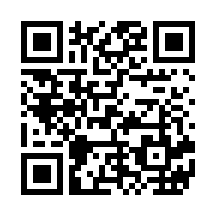
About Glow Play
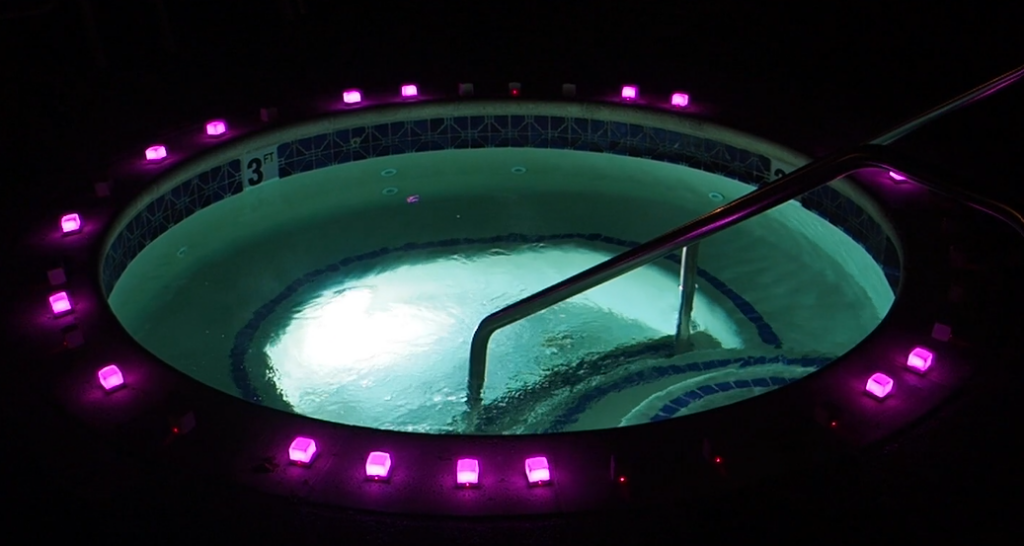
- Glow Play is a web app that allows you to freely control the lighting of Glow R devices for purposes other than practice.
- It can be used for various events or as an eye-catching display.
- You can set the devices to glow in any color from a palette of 32,000 shades.
- It supports the control of up to 65,000 Glow R devices.
- You can create programs with up to 20 steps to define lighting patterns.
- Registered device information and created programs can be saved.
A Topic for Android Users
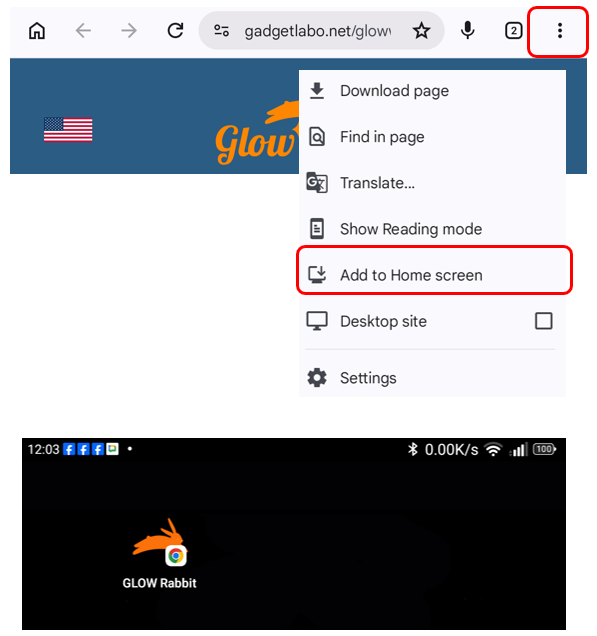
If you are using an Android smartphone or tablet, please open the web app in your browser, tap the three-dot icon located in the top-right corner of the browser window, and select “Add to Home Screen” from the drop-down menu that appears.
The Glow Rabbit icon will then appear on your home screen, allowing you to launch and use the app just like a standard application simply by tapping the icon from now on.
Homepage Description
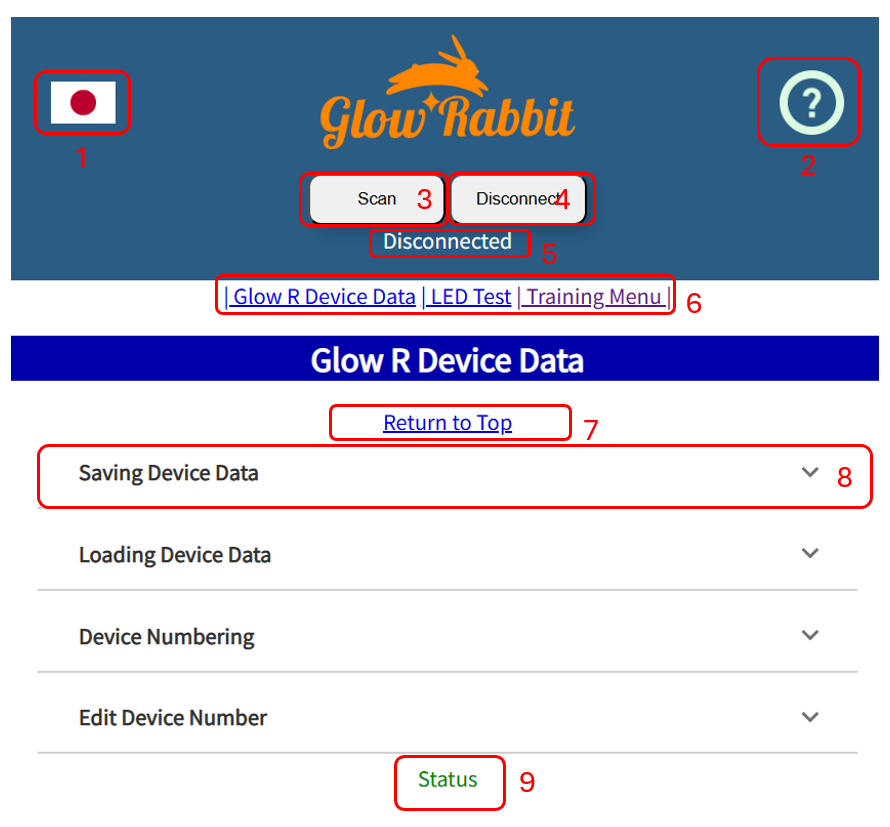
- Switch Language (English/Japanese)
- Junp to Manual Page
- Scan Button
- Disconnect Button
- Connection Status
- Jump to Section
- Return to Top Page
- Function Menu
Normally, this menu is collapsed as shown in the diagram.
Click this area to display the functions.
Click again to collapse the menu. - Status Display
Basic Usage
Connecting to the Glow C Device
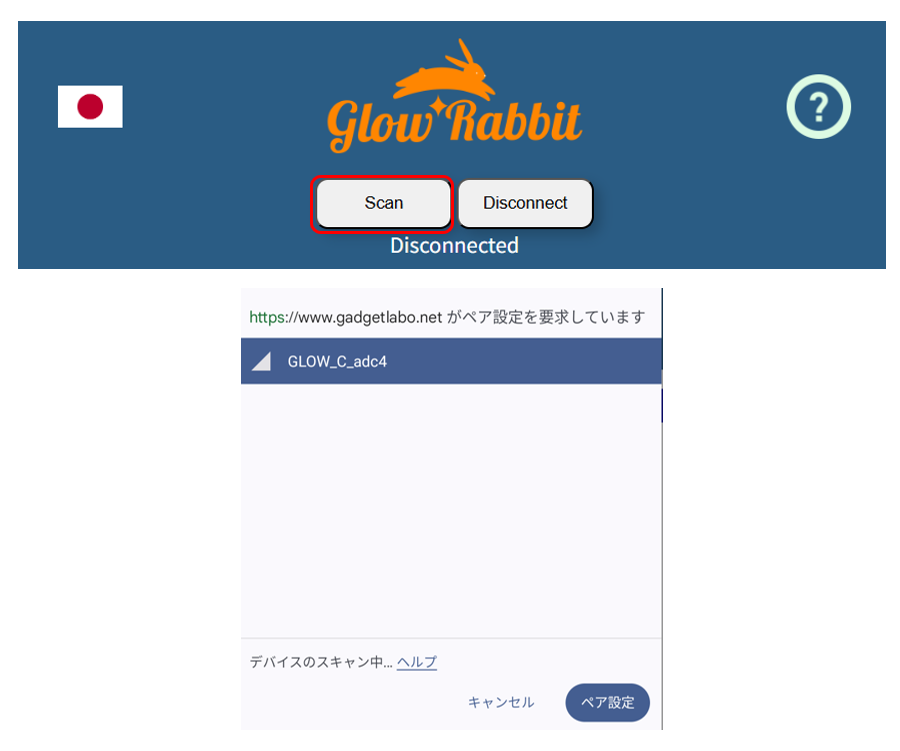
- Turn on the Glow C device.
- Click the Scan button.
- A prompt requesting access to Bluetooth functionality will appear; please grant access.
- (This occurs only during the initial access.)
- Nearby Glow C devices will be displayed.
- Select the Glow C device you wish to connect to, then click the Pair button.
- Once the connection is successfully established, “Connected” will appear beneath the button.
- When you are finished using the device, click the “Disconnect” button, reload your browser, or close the browser to terminate the connection.
Glow R Device Settings
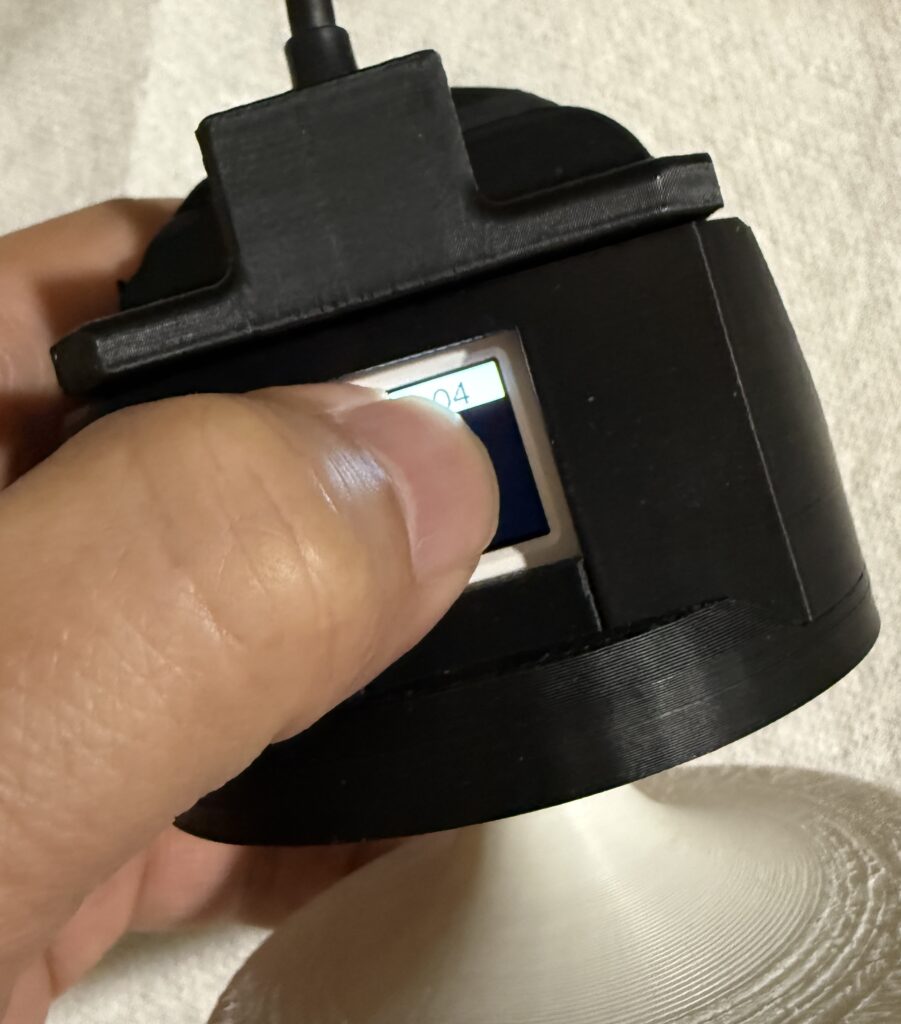
- Install the Glow R units, then click on the LCD screen located on the back of each unit in the specific order you wish them to light up.
- Once you have finished registering all of the Glow R units, click the “Save Device Data” button; this allows you to reuse the configuration later, which is very convenient.
LED Test
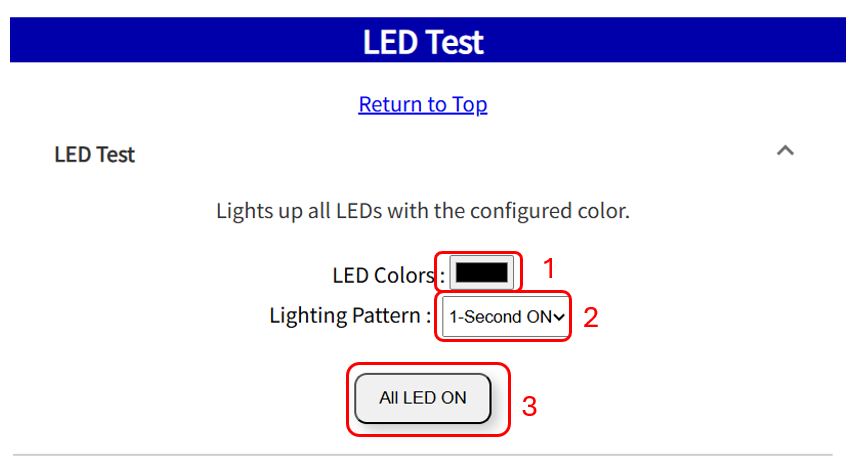
- Open “LED Test” click “1” to launch the color picker, and then select a color.
- Click “2” to select a lighting pattern from the following four options.
- Lit for 1 second
- Lit for 2 seconds
- Slowly lights up for 1 second
- Slowly lights up for 2 seconds
- Clicking “All LED ON” (3) causes all of the Glow R’s LEDs to light up in the specified color and pattern.
Program step
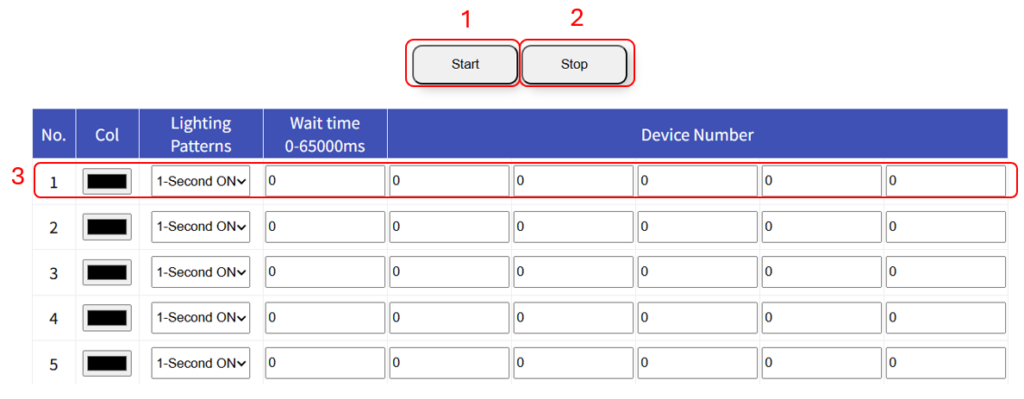
- Starts the created program.
- Stops the running program.
The program runs in a loop until stopped. - Write one program step per line.
Up to five devices on the same line will light up under the same conditions. If you wish to light up more than five devices under the same conditions, set the wait time on the next line to zero and program them with the same conditions; they will then light up almost simultaneously.
(Note: A slight time lag will occur because signals are sent to each device individually.)
Set the light emission color
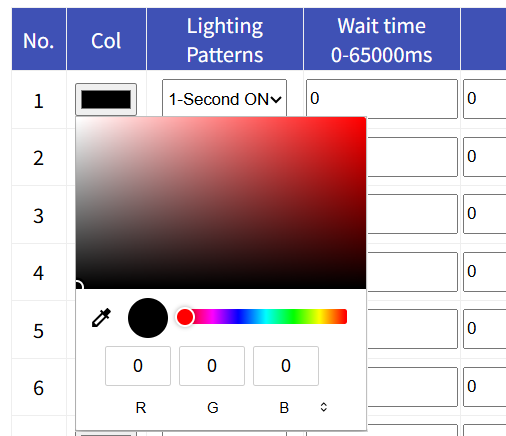
- Click the color icon to open the color picker (the design of the color picker varies depending on the OS).
- Select the color you want to make glow.
Specify lighting pattern
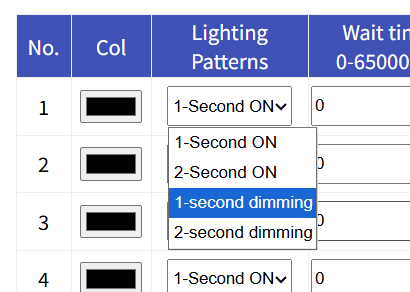
- Clicking the lighting pattern opens a pull-down menu.
- Select from four options:
1-second illumination
2-second illumination
slow illumination over 1 second
slow illumination over 2 seconds.
Setting the wait time and device number
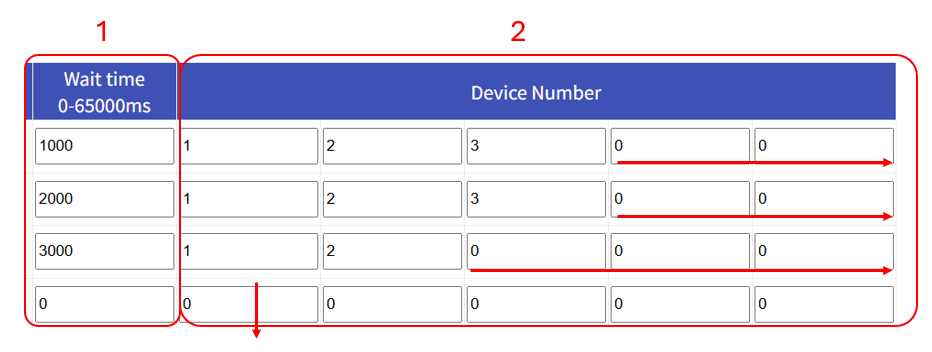
- Specify the wait time before executing the step. If the same device is to be illuminated in the next step, take the current illumination duration into account, as the device will not accept commands while lit.
Conversely, if a different device is used, you can set the wait time to zero to illuminate them simultaneously.
The unit is milliseconds (1/1000 of a second); to specify one second, please enter 1000. - Set the device number.
Devices on the same line will light up simultaneously under the same conditions.
Commands are not accepted while the device is lit, so do not assign the same device number to the same line.
If 0 is specified for the device number, the part to its right is ignored (horizontal arrow).
Also, if 0 is specified at the beginning of a line, the subsequent steps are ignored (vertical arrow).
Detailed Explanation of Other Features
Saving Device Data
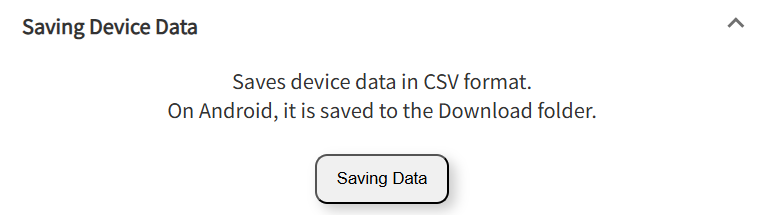
- Saving Device Data
The device information registered by pressing the rear button on the Glow R—after connecting the Glow C—is saved when you click this button.
Loading Device Data
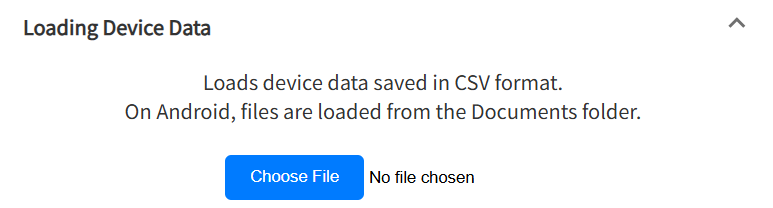
- Loading Device Data
Load the Glow R device information previously saved via the “Save Device Data” function. This allows you to use the same device immediately—without the need for re-registration.
Device Numbering
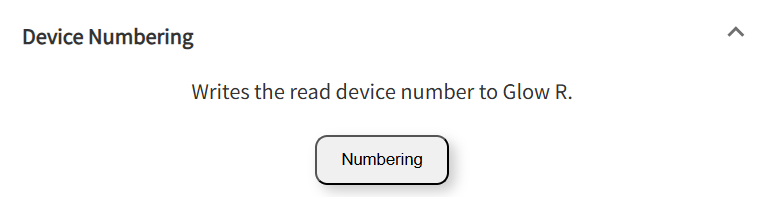
- Device Numbering
The device number retrieved during the data loading process is displayed on the rear LCD screen of the Glow R, followed by a test illumination.
By performing this device numbering sequence after editing a device, you can verify that the settings have been configured correctly.
Edit Device Number
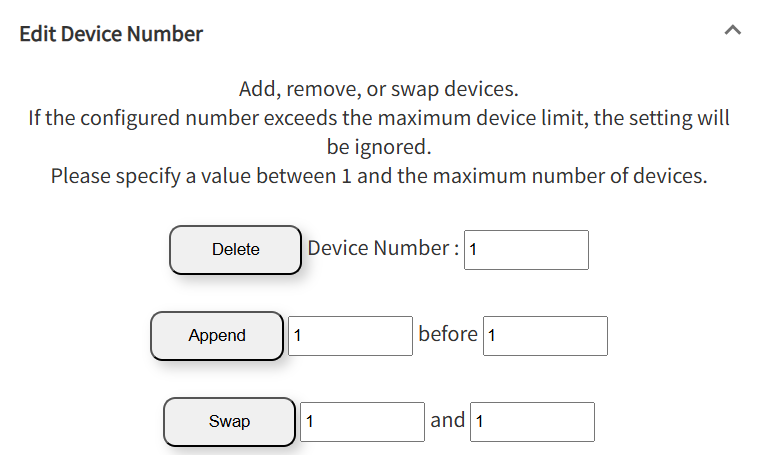
- Edit Device Number
You can delete, add, or swap registered devices using their device numbers. - You can verify whether the settings have been configured correctly by checking the “Device Numbering”.
Saving and Loading Program Data
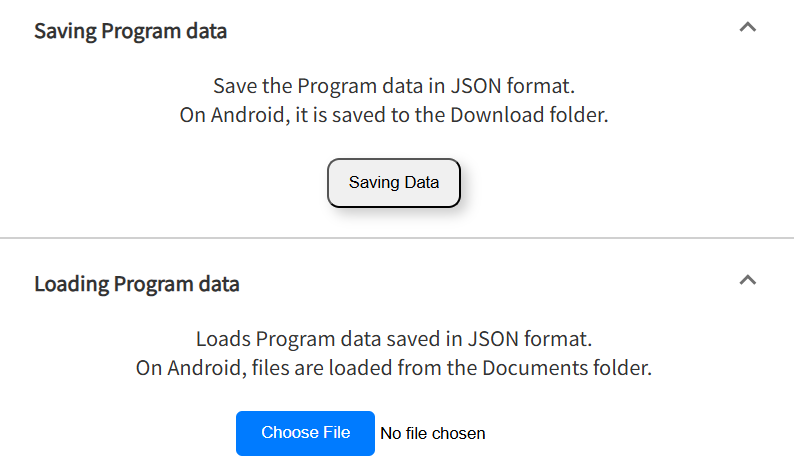
- Saving Program Data
Saves the created lighting program. - Loading Program Data
Loads a saved lighting program.
External trigger
This feature allows you to freely control the start and stop functions of the Glow Rabbit program from an external source. By simply connecting to the I2C connector on the center device (M5StickC Plus2) and controlling the GPIO, you can start or stop the program in response to various inputs.
Note: The center device requires firmware version 2.21 or later.
Connection
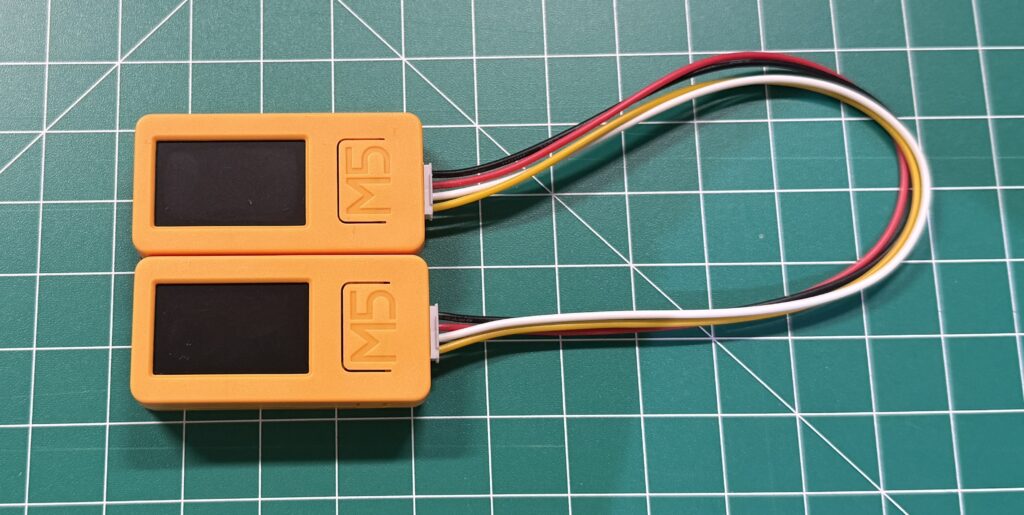
Connect an external device—one that features an I2C connector similar to that of the M5StickC Plus2—to the I2C connector on the center device (M5StickC Plus2).
Use a Grove cable for the connection.
SeeedStudio Grove
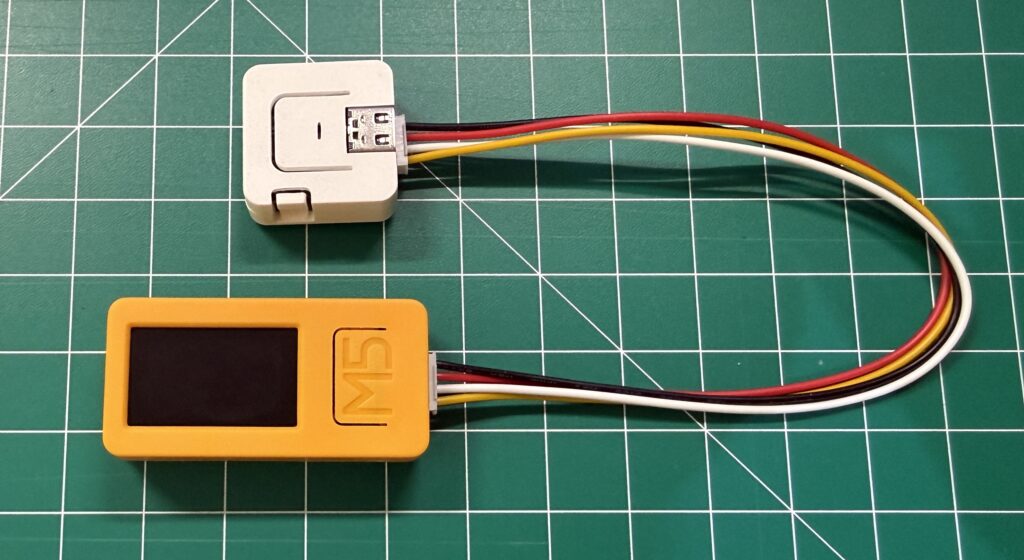
This shows the setup with the M5Stick AtomS3 Lite connected.
Other devices that can be connected using a Grove cable without modification include the M5StickS3, AtomS3R, Atom Lite, and Atom Matrix.
M5Stack
How is it controlled?
Controlling the center device is simple.
You only need to control the G32 and G33 pins located at the center device’s I2C connector.
Since G32 and G33 are internally pulled up, you can start or stop the program by connecting each of them to GND.
- G32 –> GND : Start
- G33 –> GND : Stop
Connecting to GND triggers the start or stop action, but since the system only detects the signal edge, please disconnect from GND immediately.
Sample source code
Here is sample code for the M5StickC Plus2.
The logic is active-low.
(This allows you to use an external switch simply by connecting it to GND.)
#include "M5StickCPlus2.h"

const int StartPin = 32;
const int StopPin = 33;

void setup() {
    auto cfg = M5.config();
    StickCP2.begin(cfg);
    StickCP2.Display.setRotation(0);
    StickCP2.Display.setTextSize(2);
    StickCP2.Display.setTextColor(GREEN);
    StickCP2.Display.println("Glow Cont");

    pinMode(StartPin, OUTPUT);
    pinMode(StopPin, OUTPUT);
    digitalWrite(StartPin, HIGH);
    digitalWrite(StopPin, HIGH);
}

void loop() {
    StickCP2.update();
    if (StickCP2.BtnA.wasPressed()) {
        digitalWrite(StartPin, LOW);
        StickCP2.Display.println("Start");
    }
    if (StickCP2.BtnA.wasReleased()) {
        digitalWrite(StartPin, HIGH);
    }
    if (StickCP2.BtnB.wasPressed()) {
        digitalWrite(StopPin, LOW);
        StickCP2.Display.println("Stop");
    }
    if (StickCP2.BtnB.wasReleased()) {
        digitalWrite(StopPin, HIGH);
    }
}
You can freely create programs that combine the device with an accelerometer or synchronize it with various other sensors.
Usage example
Specific examples of use:
- Lights up when the door opens
- Lights up when a person approaches (using a motion sensor)
- Lights up when the excitement builds (using a sound sensor)
- Halloween or Christmas decorations
- Lights up at a scheduled time
- Lights up via remote activation
- Lights up based on weather or temperature
- Lights up based on web-based information
- Lights up in response to events like sudden braking
- Lights up upon a starting signal
- Lights up when it gets dark (using a light sensor)