GlowR is a device that illuminates in response to commands sent from sources such as tablets installed at venues like sports grounds.
GlowR features two operating modes: Normal Mode and Long-Range Mode.
To use Long-Range Mode, all GlowR, GlowC, and repeater units in the system must be set to Long-Range Mode.
You cannot mix Normal Mode and Long-Range Mode within the same system.
While Long-Range Mode extends the communication range up to a maximum of 1 km, it reduces the communication speed by half to 250 kbps and introduces latency.
Please select the appropriate mode based on your specific requirements.
Mode switching
If you turn on the power normally, it will start up in standard mode.
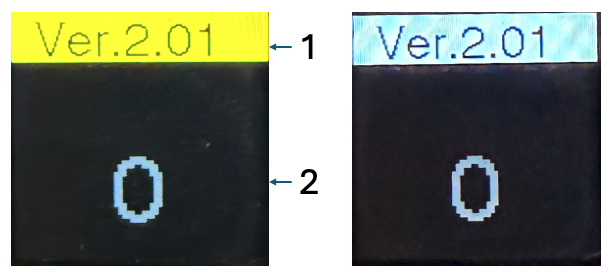
In standard mode, the background color of the title area at the top is white.
If you turn on the power while pressing the button on the LCD display area, it will enter long-range mode.
Keep the button pressed while turning on the power, and release it once “LONG RANGE MODE” appears on the display.
When it switches to long-range mode, the background color of the title area changes to orange.
Please verify that the title area background color is orange on all connected GlowC, GlowR, and repeater units.
Explanation of the display
Title screen. The background color is white in Normal Mode and orange in Long-Range Mode.
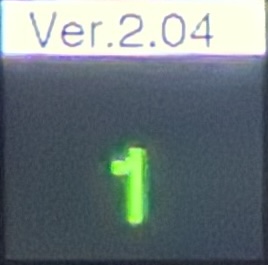
Device number. When connected to GlowC, pressing the button on the device’s rear LCD panel registers the device and displays its assigned device number.
How to use
Connect the battery to the USB-C port and power on the device in either Standard Mode or Long-Range Mode.
All GlowR, GlowC, and Repeater units used in the same group must be set to the same mode.
Ensure that the title background color is consistent (either white or orange) across all units.
Connect the GlowC to the iPad app or web app.
Please refer to the respective manuals for instructions on using the iPad app or web app.
Press the button on the GlowR’s LCD display in the order the units will be arranged (e.g., along a track).
The device is registered to the GlowC, and the assigned device number appears on the GlowR’s LCD.
Perform this registration process for all GlowR units.
Once registration is complete, press the front button on the GlowC and verify that all GlowR units light up correctly.
Place the units along the track (or similar area) in the order of the device numbers shown on the rear LCDs.
Use the system with the iPad app or web app.
How to lock the device
The Glow R is a unit installed at venues such as sports grounds, and the number of Glow C controllers used to operate them can be expanded up to 32,000 units.
This capability allows multiple teams to share the Glow R units installed at a venue, or enables use in scenarios that a single controller cannot cover—such as marathons, where each runner carries a Glow C.
Conversely, there may be situations—such as track events—where you wish to prevent unauthorized access from other Glow C units.
In such cases, the lock/unlock function can be used to restrict access to only those Glow C units that have been specifically authorized.
Lock
Launch the app and connect to the Glow C.
Turn on all Glow R and Glow C units, then press the button on the back of each Glow R to register all the devices.
Press the lock button in the app.
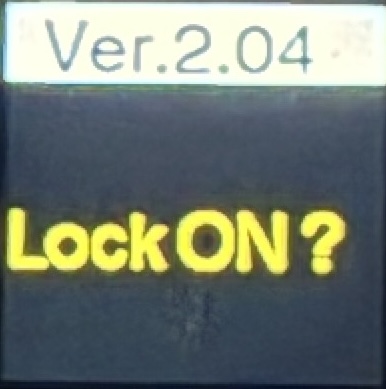
“Lock ON?” will be displayed on the LCD of the first device for 5 seconds.
Press the button on the back while it is displayed.
If the button is not pressed, the command will be ignored.
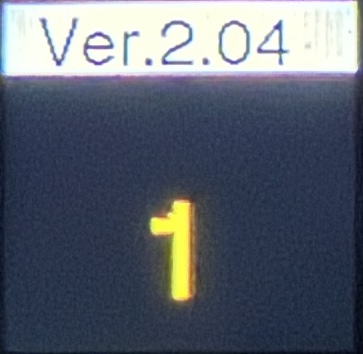
Confirm that the device number of the first device is displayed in orange.
Pressing the numbering button locks all devices, and the device number display turns orange.
UnLock
When locked, it accepts commands only from the registered Glow C.
Press the unlock button in the app.
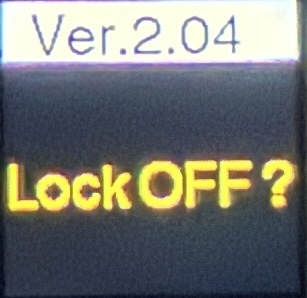
“Lock OFF?” is displayed on the LCD of the first device for 5 seconds.
Press the button on the back while the display is active.
If the button is not pressed, the command will be ignored.
Confirm that the device number of the first device is displayed in green.
Pressing the numbering button unlocks all devices, and the display turns green.